KaedeRPG 0.1.0
版Version: 0.1.0
言語: 日本語Language: English
目次Contents

KaedeRPG 導入ガイド

この説明書は KaedeRPG 0.1.0(2026-10-21)のものです。

Unreal Engine の中で、2D の RPG とノベルゲームを作るプラグインです。このガイドは、買ってから見本のゲームを書き出すまでの手順です。
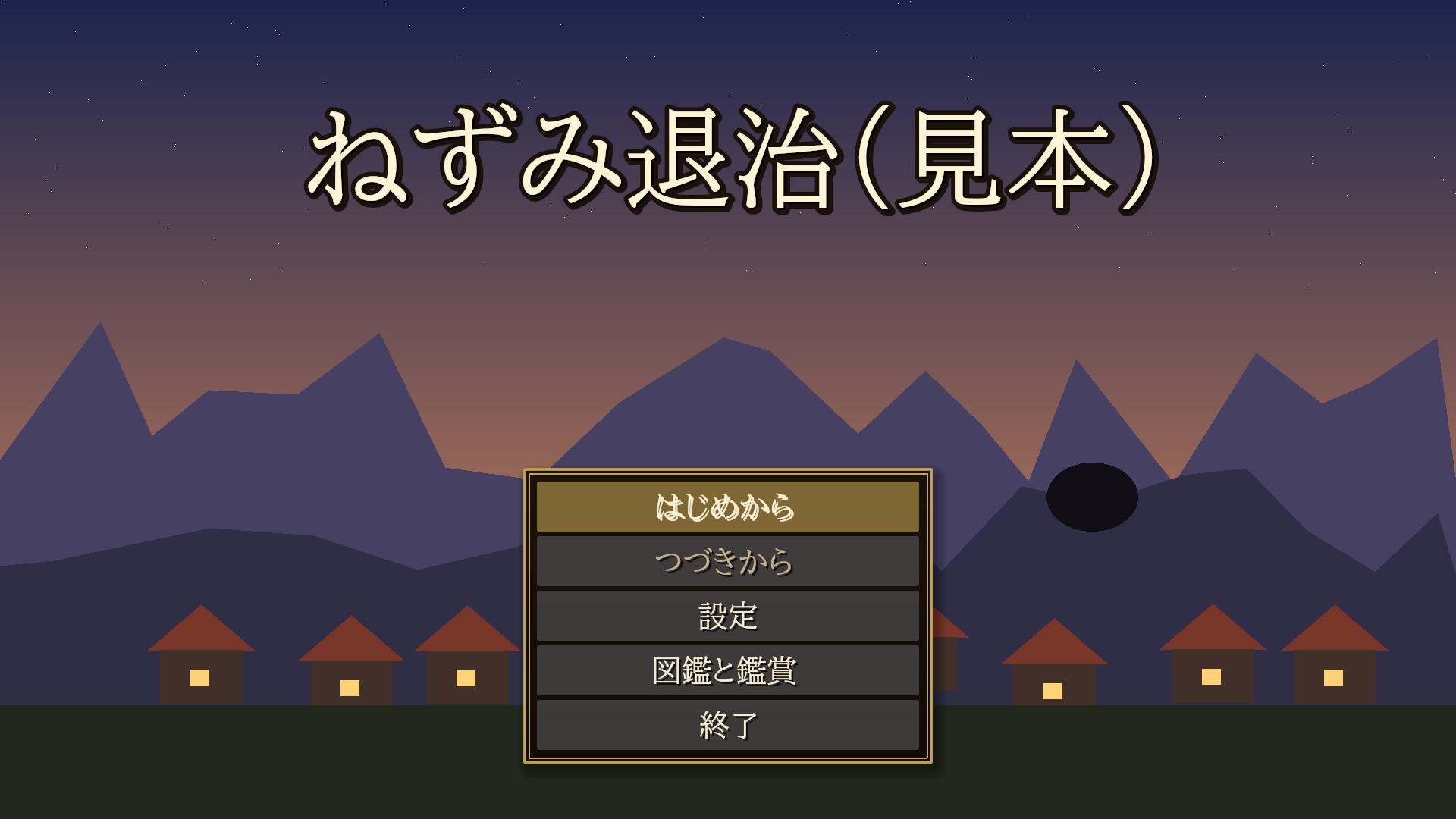
タイトル画面


目次

  1. はじめての一本道(買ってから書き出すまで)
  2. このプラグインでできること
  3. 要るもの
  4. 入れる・開く
  5. 見本の作品を遊ぶ
  6. テストプレイ
  7. 書き出す(ゲームにする)
  8. 困ったとき

1. はじめての一本道(買ってから書き出すまで)

UE(Unreal Engine)を初めて使う人が、KaedeRPG を買ってから見本のゲームを書き出すまでの順番です。上から順に進めれば、ほかの章もリファレンスも読まずに最後まで行けます。ほかの章とリファレンスは、自分の作品を作るときに、必要な所だけ読んでください。

先に全体の順番です。 KaedeRPG は単独で起動するアプリではなく、UE のエディタの中で動く道具です。なので「KaedeRPG を起動する」という手順はありません。UE でプロジェクトを開き、メニューからツールを開きます(1.7)。このガイドとリファレンスでは、プログラムを立ち上げることを「起動する」(ランチャー・UE・書き出したゲーム)、動いているプログラムの中で窓や作品を出すことを「開く」(プロジェクト・RPG 制作ツール・見本)と書き分けます。UE の公式の文書と同じ使い方です。

順 やること どこで 終わると
1.1 Fab で KaedeRPG を買う Fab ランチャーのライブラリに KaedeRPG が入る
1.2 UE 5.8 を入れる Epic Games Launcher UE を起動できる
1.3 買った KaedeRPG をエンジンに入れる ランチャー UE に KaedeRPG が入る
1.4 無料のプラグイン 2 つを足して、エンジンに入れる Fab とランチャー UE に KaedeVN と MomijiUI が入る
1.5 Visual Studio を入れる Microsoft のインストーラー 書き出しの準備が整う
1.6 新しいプロジェクトを作る UE のプロジェクトブラウザ 自分のプロジェクトがエディタで開く
1.7 プロジェクトで KaedeRPG を有効にし、ツール → KaedeRPG で開く UE のエディタ RPG 制作ツールの窓が出る
1.8 見本を開く RPG 制作ツール 見本の作品が読み込まれる
1.9 テストプレイ RPG 制作ツール 別の窓で見本を遊べる
1.10 書き出しの準備をして、UE でパッケージ化 RPG 制作ツールと UE Windows の exe ができる

2 回目からは、1.6 で作ったプロジェクトを開き、1.7 の手順 3(ツール → KaedeRPG)だけを行います。1.1〜1.5 と 1.7 の手順 1・2 は最初の 1 回だけです。

1.1 Fab で KaedeRPG を買う

  1. Epic Games のサイトで、Epic Games のアカウントを作ります。
  2. Fab(fab.com)にそのアカウントでサインインし、KaedeRPG のページで買います。買うと、同じアカウントの Epic Games Launcher のライブラリに KaedeRPG が入ります。

1.2 Unreal Engine を入れる

  1. Epic Games のサイトから Epic Games Launcher(ランチャー)を入れ、1.1 のアカウントでサインインします。
  2. ランチャーの Unreal Engine → ライブラリ で、エンジンのバージョンの + を押し、5.8 を選んで インストール します。

1.3 買った KaedeRPG をエンジンに入れる

  1. ランチャーの Unreal Engine → ライブラリ を開くと、Fab の欄に 1.1 で買った KaedeRPG が並んでいます。
  2. KaedeRPG の エンジンにインストール を押し、5.8 を選びます。プラグインは <UE のフォルダ>\Engine\Plugins\Marketplace\ の下に入ります(UE のフォルダの既定は C:\Program Files\Epic Games\UE_5.8。フォルダの名前の後ろに版が付くことがあります)。

1.4 無料のプラグインを 2 つ足す

KaedeRPG が動くには、無料のプラグインが 2 つ要ります。KaedeVN(ノベルの部分)と MomijiUI(画面の部分)です。KaedeRPG だけでは動きません。

  1. Fab で KaedeVN のページを開き、「ライブラリに追加」します。MomijiUI も同じようにします。どちらも無料です。
  2. ランチャーの Unreal Engine → ライブラリ の Fab の欄に 2 つが並びます。それぞれ エンジンにインストール を押し、5.8 を選びます。1.3 と同じ場所に入ります。

1.5 Visual Studio を入れる(.vsconfig)

ゲームとして書き出すとき、このプラグインのコードを組み立てるために Visual Studio が要ります。書き出す直前でなく、いま入れておきます。入っていないと、1.10 で書き出しの準備のあとにエディタを開き直すところで止まります。

  1. Microsoft のサイトから Visual Studio Community(無料。2026、または 2022 の 17.8 以降)のインストーラーを取ってきて起動すると、Visual Studio Installer が開きます。
  2. Visual Studio Installer の その他 → 構成のインポート(英語の表示では More → Import configuration)で、KaedeRPG のプラグインのフォルダ(1.3 の置き場)にある .vsconfig を選び、インストール します。UE 5.8 が勧める部品(C++ によるデスクトップ開発・C++ によるゲーム開発・Windows 11 SDK など)に、まとめて印が付きます。

1.6 新しいプロジェクトを作る

  1. ランチャーの Unreal Engine → ライブラリ で、5.8 の 起動 を押します。
  2. プロジェクトブラウザで ゲーム → 空のプロジェクト(Blank)を選び、ブループリント のままにします(C++ を選ばなくてよい。書き出しに要る C++ は、あとで 書き出しの準備… が足します)。
  3. プロジェクトの名前は英数字と _ だけ(例 MyRpg)にして 作成 を押します。日本語や空白の入った名前は、書き出しの準備で断られます。

これで、新しいプロジェクトがエディタで開きます。

1.7 プロジェクトで KaedeRPG を有効にして、ツールを開く

プラグインはエンジンに入っただけでは使えず、プロジェクトごとに有効にします。有効にするのは、プロジェクトを作った最初の 1 回だけです。

  1. エディタの 編集 → プラグイン で KaedeRPG を探し、印を付けて有効にします。KaedeRPG に要る KaedeVN と MomijiUI も有効にするかを聞く窓が出るので、はい を押します。
  2. 「再起動が必要」と出るので、エディタを開き直します。同じプロジェクトを開きます。
  3. メニュー ツール → KaedeRPG(RPG 制作ツール) を選びます。RPG 制作ツールが独立した窓で開きます。これが KaedeRPG を開く操作で、以後は毎回この操作で開きます。UE のタブとして作ってあるので、好みでメインの窓にドッキングもできます。

2 回目からは、ランチャーの Unreal Engine → ライブラリ で 5.8 を 起動 し、プロジェクトブラウザの「最近使ったプロジェクト」から 1.6 のプロジェクトを開いて、手順 3 だけを行います。

プラグインのフォルダの Build-KaedeRpgCli.bat は、CLI(リファレンスの §14)を自分で組み立てるときだけ使います。エディタだけで作るなら飛ばしてかまいません。

1.8 見本を開く

  1. ツールの 見本を開く を押します。見本の作品がプロジェクトの Works\sample_quest へ写され、開きます(マップ・イベント・データベースが読み込まれます)。

1.9 テストプレイ

  1. ツールの ▶ テストプレイ を押すと、別の窓で見本のゲーム「ねずみ退治」が始まります。矢印キーで歩き、Enter で話しかける・文を送る、Esc でメニューです(始まりに主人公の名前を聞かれたら、打って Enter)。ほかのキーとゲームパッドは、リファレンスの §12「ゲームの操作」にあります(書き出しには要りません)。
  2. 遊んでいる間に F9 を押すと、デバッグの窓が開きます(変数・所持品・お金を変える・壁抜け・この戦闘に勝つ など。このガイドの §6)。もう一度 F9 で閉じます。遊び終えたら、テストプレイの窓を閉じて次へ進みます。

1.10 書き出す(パッケージ化)

  1. 1.5 の Visual Studio が入っていることを確かめます。Windows のスタートメニューに Visual Studio 2022 か 2026 があれば入っています。入っていない状態で進むと、手順 4 でエディタを開き直すところで止まります。
  2. ツールの窓の上に出ている検査の件数で、error が 0 件なのを確かめます。
  3. ツールの 書き出しの準備… を押し、出た確かめの窓で書き込みます。
  4. エディタを開き直します。モジュールを組み立て直すかを聞く窓が出るので、はい を押します。ここで Visual Studio がコードを組み立てます。
  5. UE の プラットフォーム → Windows → プロジェクトをパッケージ化 で、出力先のフォルダを選びます。
  6. 出来たフォルダの exe を起動すると、見本のタイトル画面から始まります。

自分の作品は、ツールの 新規… で作り(新規は見本から始めるのが既定。リファレンスの §2「作品フォルダ」)、1.9・1.10 と同じ順で遊んで書き出します。1 つのプロジェクトで書き出せるのは、最後に 書き出しの準備… を押した作品 1 つです。別のゲームは別のプロジェクトで作ってください。詳しくは §7。


2. このプラグインでできること

分野 できること
マップ 48px のタイルで、下・中・上の 3 層を塗る。通行(○×と上書き)。イベントを置く。プレイヤーの開始位置。雰囲気(暗さと明かり・霧・雨と雪・遠景・前景)・カメラのズームと寄せ
イベント ページ(出現条件・見た目・起動・高さ・自律移動・明かり)と、命令の列(会話・フキダシ・止まらない会話・選択肢・条件分岐・変数・移動・戦闘・ショップ・音・演出・アニメ・天候・カメラ・クレジット・クエスト・合成の画面・エンカウント・ピクチャ・入力など 60 種)
ノベル 物語の話(章と話)。背景・立ち絵(表情)・顔・名前・文字送り・文字の音・文中の差し込み(変数・アイテム名など)と本文の色・オート・既読スキップ・バックログ・演出(揺れ・フィルタ・暗転)
戦闘 正面型のコマンド戦闘(たたかう・技・アイテム・防御・逃げる)。計算式を自分で書ける。状態異常・落とす物・経験値とレベル。技と攻撃のアニメ・勝利の画面。運で決まるもの(ダメージの振れ・命中・敵の行動・エンカウント)は全部 1 つの乱数の種(乱数の出発点になる数)から引くので、同じ種なら必ず同じ結果(決定論。リファレンス §14 の play・battle の --seed)
データベース 作品の設定・仲間・技・アイテム・敵・敵の組・状態・クエスト・合成・システム・サーバー
画面 起動のロゴ・タイトル・メニュー・所持品・技・装備・状態・セーブ/ロード(20 枠+オート)・設定(音量 4 系統・文字の速さなど)・ショップ・ゲームオーバー・バックログ・勝利の画面・マップの HUD と入手のお知らせ・クレジット。配置・色・書体は画面のタブで見ながら変えられる(リファレンス §10)
検査 「最後まで遊べるか」を機械で確かめる(行けない場所・終わらない自動イベント・満たせない条件・勝てない最初の戦闘・呼ばれないエンディングなど)
生成 AI 作品フォルダで Claude Code・Codex に頼むと、同梱の CLI(コマンドラインツール kaede-rpg.exe。クリックの代わりに Windows の PowerShell に命令を打って使う道具。リファレンス §14)とスキルで作品を直す。書くたびに自動で検査
書き出し ボタン 1 つでプロジェクトの設定を整え、UE の「パッケージ化」でゲームにする(Windows)

作品は作品フォルダの JSON(文字のファイル)です。エディタ・CLI・生成 AI の、どれで直しても同じ結果になります。Git で差分を見られます。


3. 要るもの


4. 入れる・開く

ふつうは §1.3〜§1.7 の手順(Fab からエンジンに入れ、プロジェクトで有効にして、ツール → KaedeRPG で開く)で入れます。ここには、それ以外の入れ方だけを書きます。


5. 見本の作品を遊ぶ

プラグインには、短い見本の作品「ねずみ退治」が入っています。村の長老に頼まれ、洞窟のねずみの王を倒す RPG です(10 分ほど)。

  1. RPG 制作ツールで 見本を開く を押します。見本がプロジェクトの Works/sample_quest へ写され、開きます(写し元はプラグインの Resources/Rpg/Samples/sample_quest。プラグインのフォルダを探さなくてかまいません)。もう写してあれば、写し直さずにそれを開きます。
  2. ▶ テストプレイ を押すと、別の窓で遊べます。始まりに主人公の名前を付けます(文字欄に打って Enter か 決定。日本語は IME で打てます。やめる と「ユウ」のまま)。名前は地の文と長老の台詞に出ます。
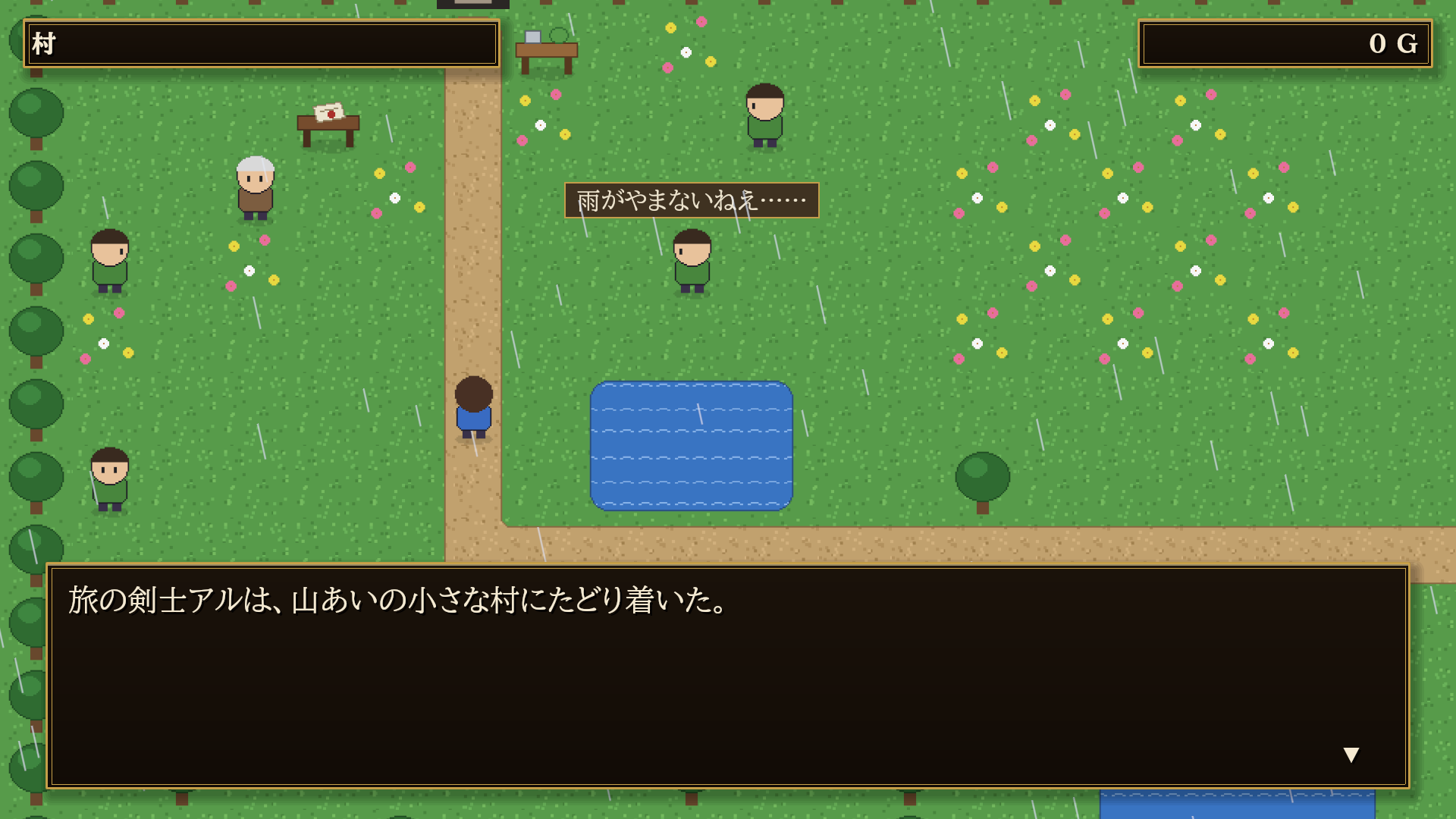
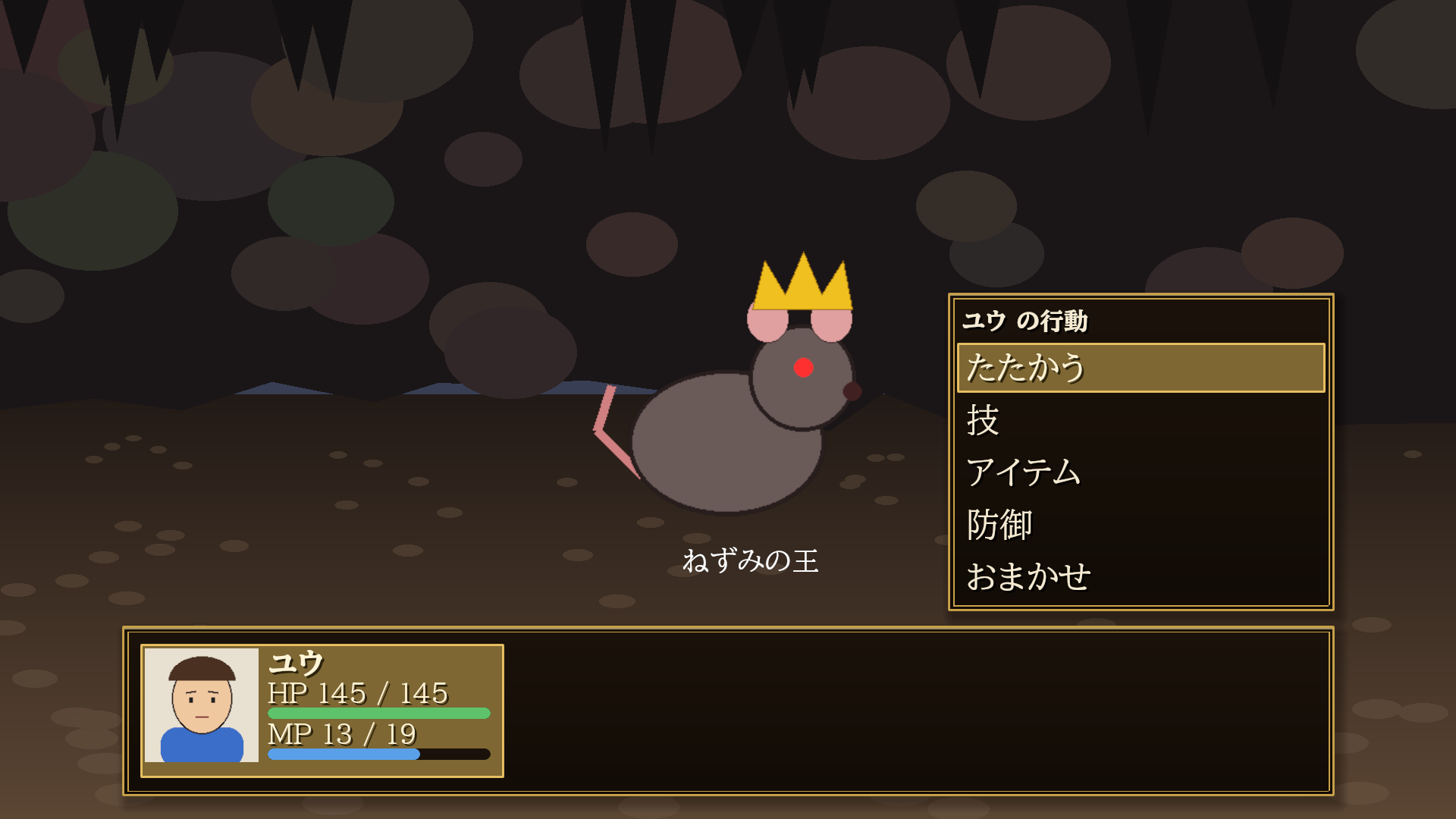
始まりの話 村 長老に話しかける
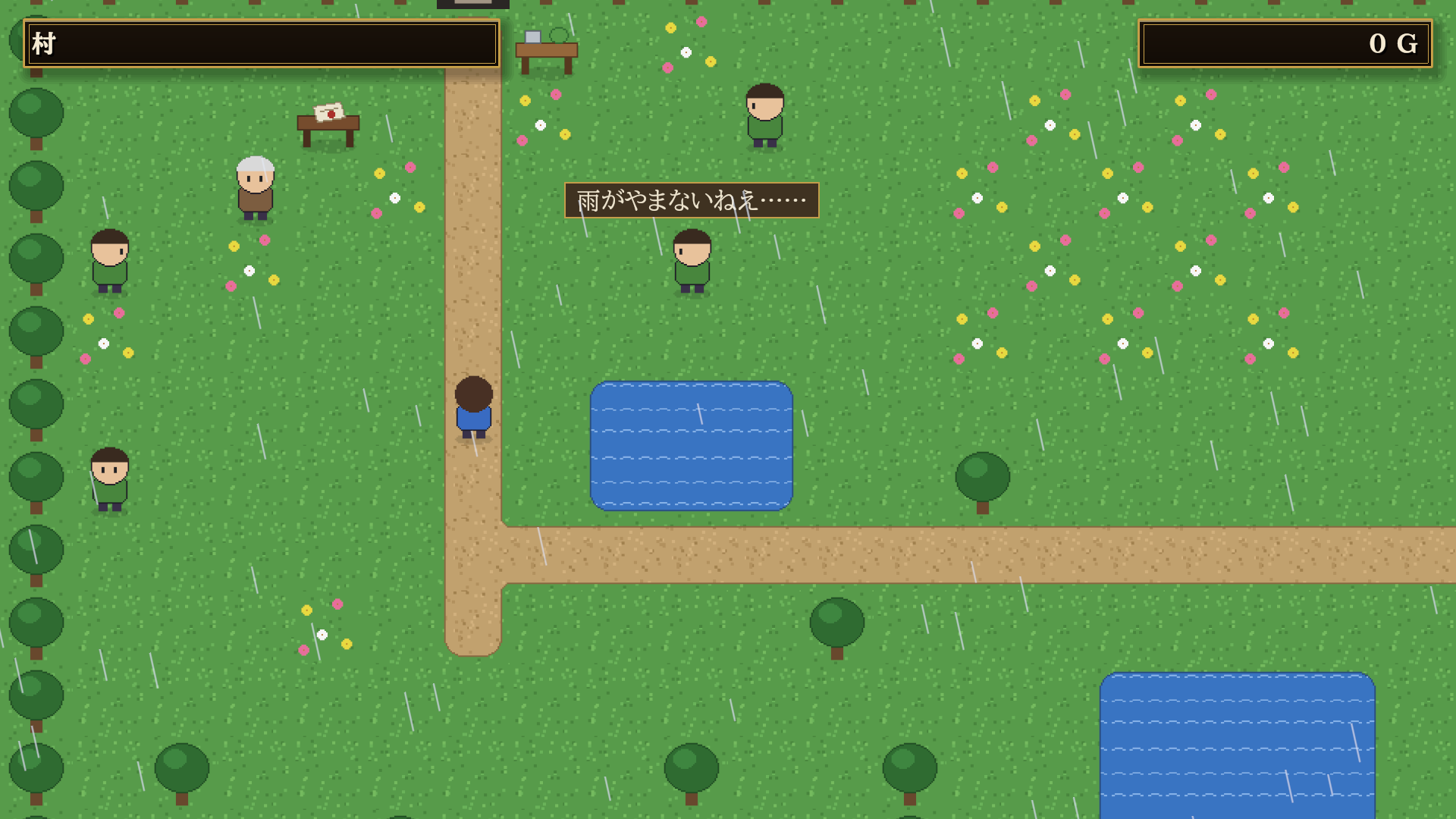
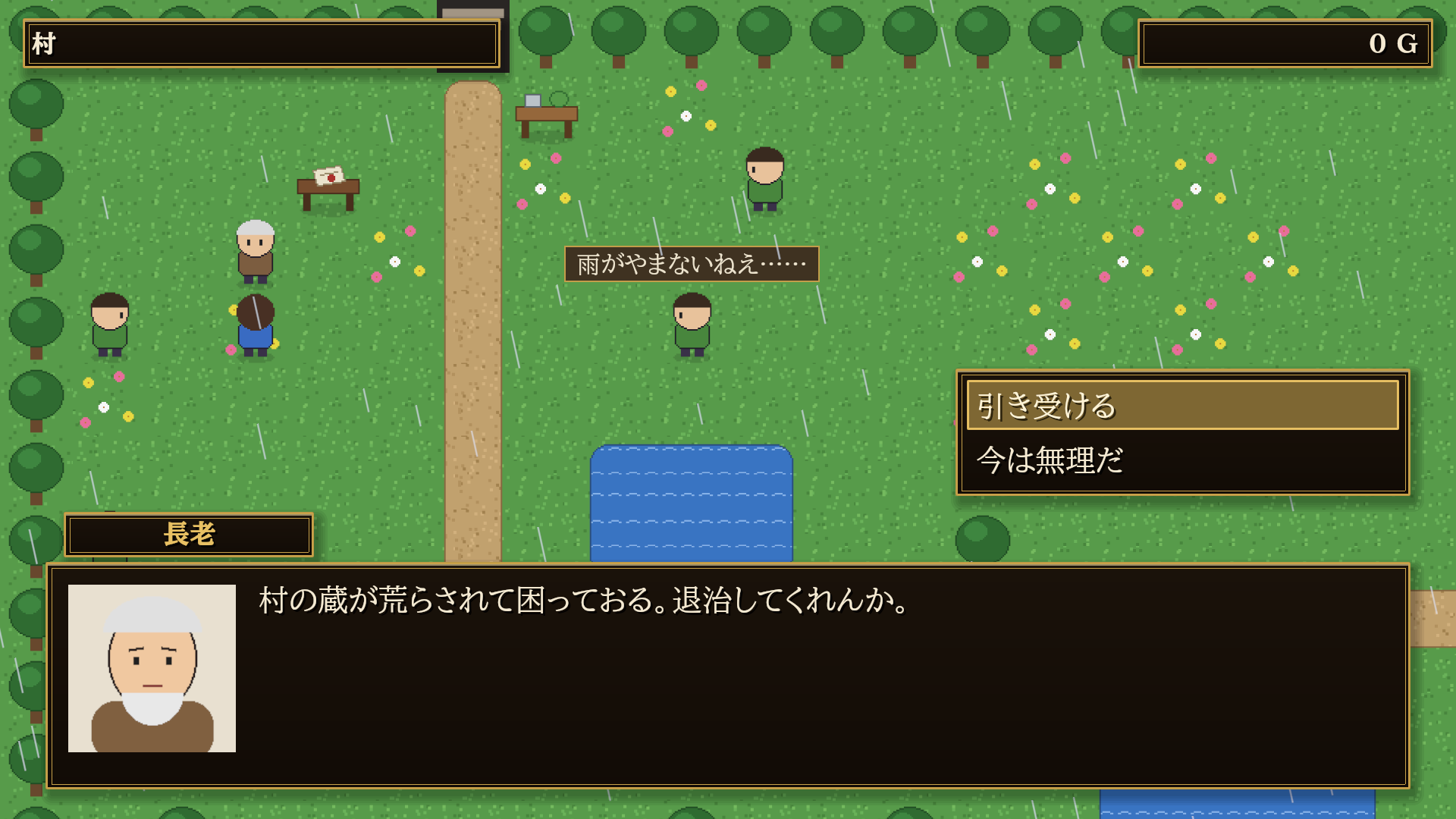
始まり 村 選択肢
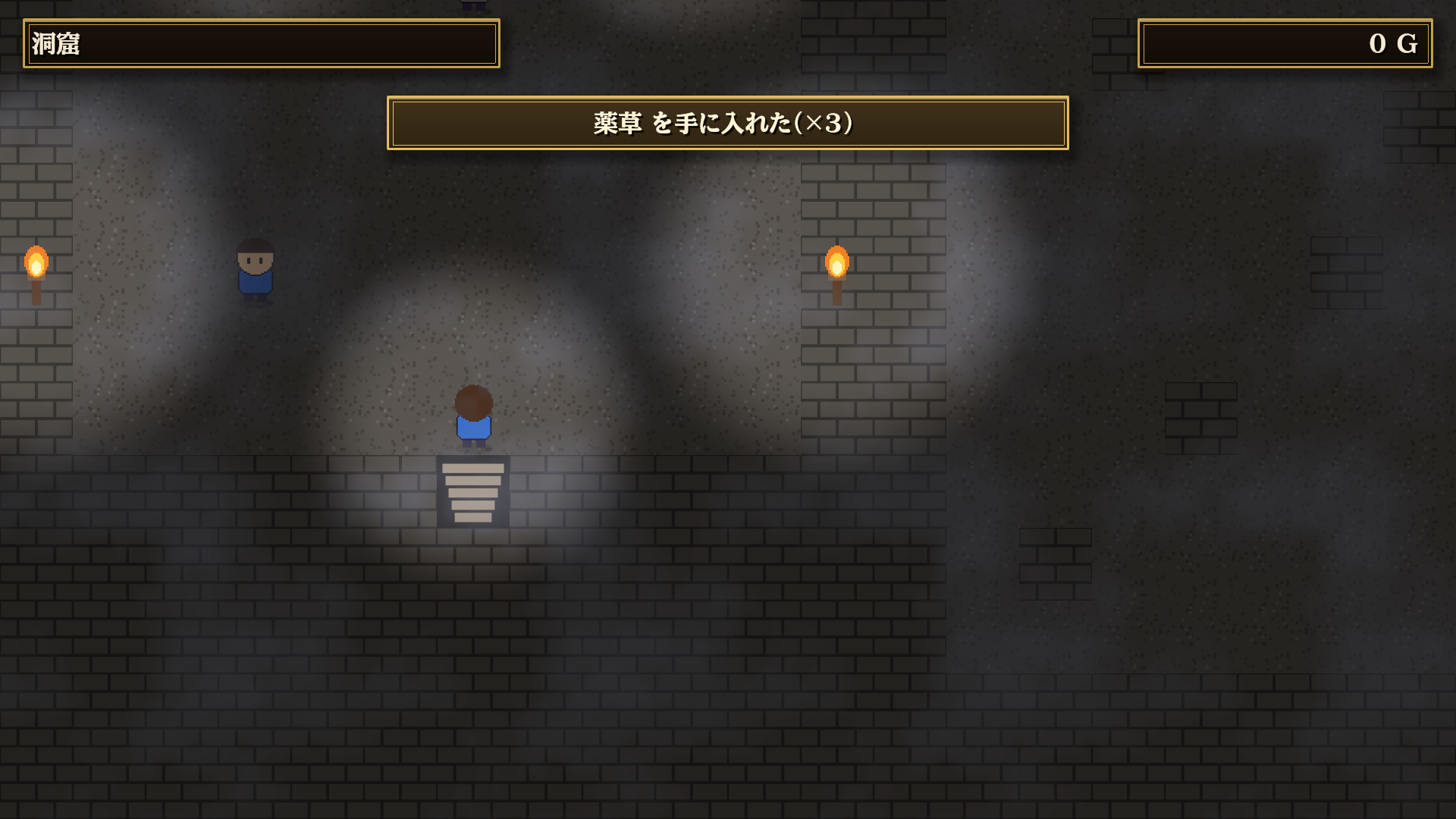
洞窟 戦闘 エンディング
洞窟 ボス戦 エンディング

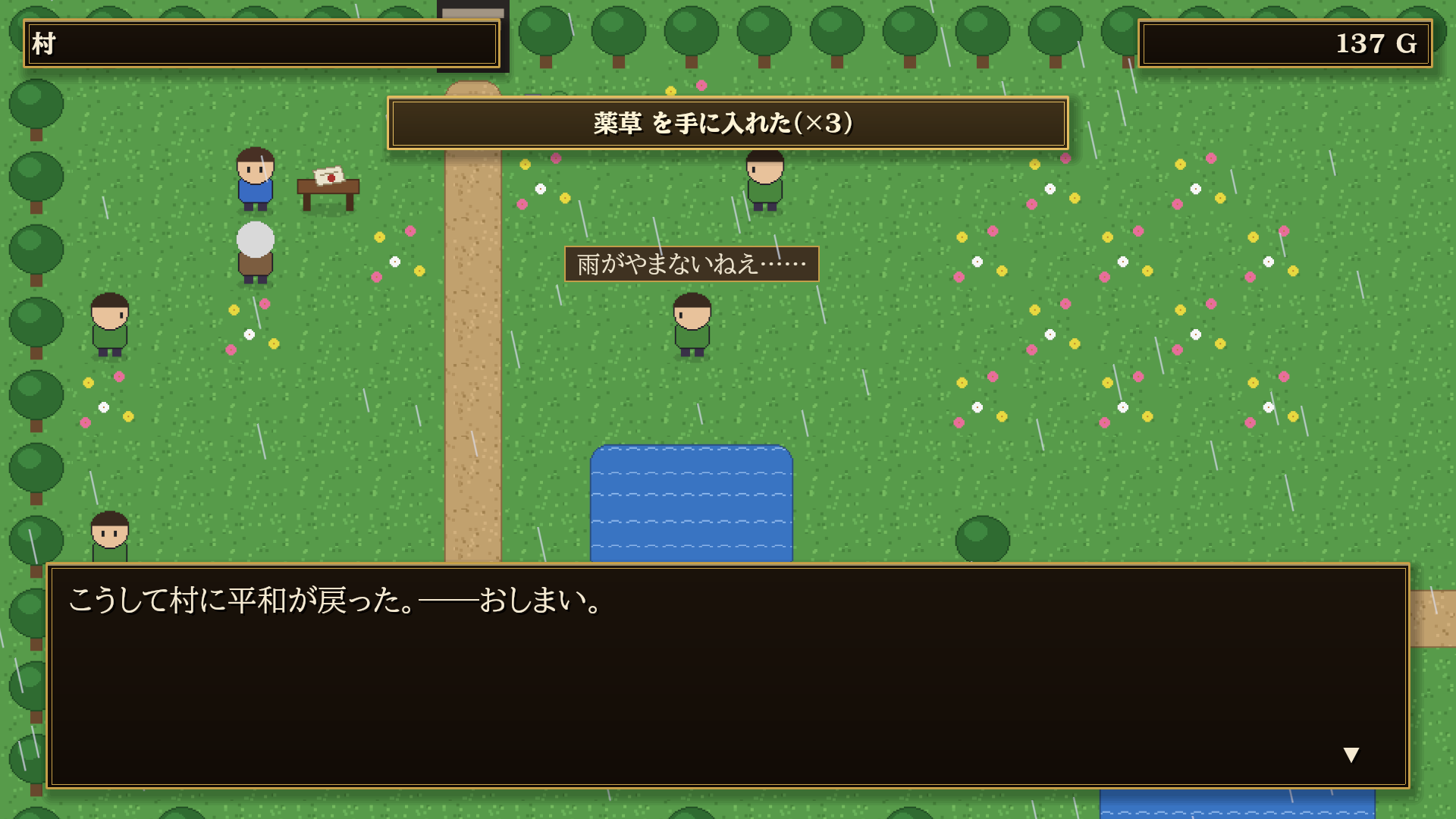
ねずみの王を倒したあと、長老の机(長老の右上。長老と話す所の右)を調べると、お礼の手紙が絵(ピクチャ・リファレンス §5)で出ます。

見本の作品の中身(マップ・イベント・データベース)をエディタで開いて読むと、作り方の例になります。

英語で遊ぶ: 見本の rpg.json に "language": "en" を書くと(データベースのタブの作品の設定の ゲームの画面の言語)、タイトル・メニュー・戦闘の文・入手のお知らせが英語になります(リファレンス §2 の「作品の言語」)。見本の台詞と名前は作品が書いたものなので日本語のままです。


6. テストプレイ


7. 書き出す(ゲームにする)

先に Visual Studio を入れておきます(§1.5)。

  1. 検査に error が無いことを確かめます。
  2. ツールの 書き出しの準備… を押します(確かめの窓が出ます。何度押してもかまいません)。
  3. エディタを開き直します(モジュールを組み立て直すかを聞かれたら はい)。
  4. UE の プラットフォーム → Windows → プロジェクトをパッケージ化 で書き出します。売るときは、パッケージ化の構成を Shipping(配る版)にします(試すだけなら Development でも動きます)。

書き出したゲームは、タイトル画面から始まります。作品フォルダはゲームの中に、ファイルのまま入ります。

自分のゲームを売るときの UE の取り決め(売上が生涯 100 万ドルを超えた分のロイヤリティなど)は、利用者と Epic Games の間のものです。Epic の EULA を確かめてください。

7.1 書き出しの準備がすること

自分で書く必要はありません。ボタンがプロジェクトの設定に次を書きます(同じ行は重ねません)。


8. 困ったとき

こんなとき 見るところ
メニューに「KaedeRPG(RPG 制作ツール)」が無い プラグインが有効か(編集 → プラグイン)。有効にしたらエディタを開き直す
Visual Studio Installer で .vsconfig を選べない ワークロードの C++ によるデスクトップ開発 と C++ によるゲーム開発 に印を付けて入れる(要る部品の中心はこの 2 つ。§1.5)
「作品フォルダでない」と出る rpg.json のあるフォルダを選んでいるか
書き出しの準備で「プロジェクトの中に置く」と出る 作品フォルダをプロジェクトのフォルダの下へ写して開き直す
書き出しの準備で「プロジェクトの名前が C++ の名前に使えない」と出る プロジェクトの名前を英数字と _ だけにする(新しいプロジェクトを英数字の名前で作り直し、作品フォルダを写す。§1.6)
書き出したゲームがすぐ終わる・「モジュールが無い」 書き出しの準備のあと、エディタを開き直して組み立てたか(Visual Studio が要る。§1.5)
検査が error を出す 検査のタブで行をダブルクリックして、その場所の「直し方」を見る
AI が書いたのにエディタが変わらない 未保存の変更があると自動では読み直さない。上の「読み直す」を押す
目次Contents

KaedeRPG — Setup Guide

This guide is for KaedeRPG 0.1.0 (2026-10-21).

A plugin for making 2D RPGs and visual novels inside Unreal Engine. This guide takes you from buying the plugin to packaging the sample game.

The editor and the sample game currently use Japanese labels. Each label is given in English in this guide and in the reference.

Title screen


Contents

  1. Your first game, start to finish
  2. What you can make
  3. Requirements
  4. Install and open
  5. Play the sample game
  6. Test play
  7. Package your game
  8. Troubleshooting

1. Your first game, start to finish

The order to follow if you have never used UE (Unreal Engine): from buying KaedeRPG to packaging the sample game. Go from top to bottom and you will not need the other chapters or the reference. Later, when you make your own game, read only the chapters and parts of the reference you need.

The whole order first. KaedeRPG is not an application you launch on its own; it is a tool that runs inside the Unreal Editor. So there is no "launch KaedeRPG" step: you open a project in UE and open the tool from the menu (1.7). In this guide and the reference, "launch" means starting a program (the launcher, UE, a packaged game) and "open" means showing something inside a running program (a project, the RPG tool, the sample), the same way the Unreal Engine documentation uses the words.

Step What you do Where Result
1.1 Buy KaedeRPG on Fab Fab KaedeRPG is in your launcher library
1.2 Install UE 5.8 Epic Games Launcher UE can be launched
1.3 Install the KaedeRPG you bought into the engine Launcher KaedeRPG is in UE
1.4 Add the two free plugins and install them into the engine Fab and the launcher KaedeVN and MomijiUI are in UE
1.5 Install Visual Studio Microsoft's installer Ready for packaging later
1.6 Create a new project UE Project Browser Your project opens in the editor
1.7 Enable KaedeRPG in the project and open Tools → KaedeRPG Unreal Editor The RPG tool window appears
1.8 Open the sample RPG tool The sample game is loaded
1.9 Test play RPG tool The sample runs in its own window
1.10 Prepare export, then Package Project in UE RPG tool and UE A Windows exe

From the second time on, open the project from 1.6 and do only step 3 of 1.7 (Tools → KaedeRPG). Steps 1.1 to 1.5 and steps 1 and 2 of 1.7 are needed only once.

1.1 Buy KaedeRPG on Fab

  1. Create an Epic Games account on the Epic Games website.
  2. Sign in to Fab (fab.com) with that account and buy KaedeRPG on its page. The purchase puts KaedeRPG into the Epic Games Launcher library of the same account.

1.2 Install Unreal Engine

  1. Install the Epic Games Launcher from the Epic Games website and sign in with the account from 1.1.
  2. In the launcher, go to Unreal Engine → Library, press + next to Engine Versions, choose 5.8 and Install.

1.3 Install the KaedeRPG you bought into the engine

  1. Open Unreal Engine → Library in the launcher. The Fab section lists the KaedeRPG you bought in 1.1.
  2. Press Install to Engine on KaedeRPG and choose 5.8. Plugins go under <UE folder>\Engine\Plugins\Marketplace\ (the UE folder defaults to C:\Program Files\Epic Games\UE_5.8; folder names may end with a version).

1.4 Add the two free plugins

KaedeRPG needs two free plugins to run: KaedeVN (the visual novel part) and MomijiUI (the screens). KaedeRPG alone does not work.

  1. On Fab, open the KaedeVN page and add it to your library. Do the same for MomijiUI. Both are free.
  2. In the launcher's Unreal Engine → Library, the Fab section now lists the two. Press Install to Engine on each and choose 5.8. They go to the same place as in 1.3.

1.5 Install Visual Studio (.vsconfig)

Packaging a game compiles this plugin's code, which needs Visual Studio. Install it now rather than right before packaging. Without it you get stuck in 1.10, where the editor restarts after Prepare export.

  1. Download the Visual Studio Community installer (free; 2026, or 2022 version 17.8 or later) from Microsoft and run it; the Visual Studio Installer opens.
  2. In the Visual Studio Installer, choose More → Import configuration and pick the .vsconfig file in the KaedeRPG plugin folder (where 1.3 put it), then Install. It ticks the components Unreal Engine 5.8 recommends (Desktop development with C++, Game development with C++, the Windows 11 SDK and more).

1.6 Create a new project

  1. In the launcher's Unreal Engine → Library, press Launch on 5.8.
  2. In the Project Browser choose Games → Blank and keep Blueprint (you do not need C++; Prepare export adds the C++ that packaging needs later).
  3. Name the project with letters, digits and _ only (e.g. MyRpg) and press Create. Names with Japanese characters or spaces are rejected by Prepare export.

The new project opens in the editor.

1.7 Enable KaedeRPG in the project and open the tool

Installing a plugin into the engine is not enough; each project enables it separately. You do this once, right after creating the project.

  1. In Edit → Plugins, find KaedeRPG and tick it to enable it. The editor asks whether to enable KaedeVN and MomijiUI, which KaedeRPG needs. Answer Yes.
  2. The editor says a restart is needed. Restart it and open the same project.
  3. Open Tools → KaedeRPG(RPG 制作ツール). The RPG tool opens in its own window. This is how you open KaedeRPG, every time from now on. It is built as an Unreal Editor tab, so you can dock it into the main window if you prefer.

From the second time on, press Launch on 5.8 in the launcher's Unreal Engine → Library, open the project from 1.6 under "Recent Projects" in the Project Browser, and do step 3 only.

Build-KaedeRpgCli.bat in the plugin folder is only for building the CLI (§14 of the reference) yourself. If you make your game in the editor only, skip it.

1.8 Open the sample

  1. Press 見本を開く (Open sample) in the tool window. The sample is copied to Works\sample_quest in your project and opened (its maps, events and database load).

1.9 Test play

  1. Press ▶ テストプレイ (Test play) in the tool window. The sample game "Rat Hunt" starts in a separate window. Walk with the arrow keys, talk and advance text with Enter, and open the menu with Esc (when asked for the hero's name at the start, type it and press Enter). Other keys and the gamepad are in §12 "In-game controls" of the reference (not needed for packaging).
  2. While playing, press F9 for the debug window (change variables, items and gold, walk through walls, win this battle, and more; §6 of this guide). Press F9 again to close it. When you have finished playing, close the test play window and go on.

1.10 Package (Package Project)

  1. Make sure the Visual Studio from 1.5 is installed. It is installed if Visual Studio 2022 or 2026 appears in the Windows Start menu. Without it, you get stuck at step 4 when the editor restarts.
  2. Check that the check count at the top of the tool window shows 0 errors.
  3. Press 書き出しの準備… (Prepare export) in the tool window and confirm.
  4. Restart the editor. It asks whether to rebuild the modules. Answer Yes. This is where Visual Studio compiles the code.
  5. Choose Platforms → Windows → Package Project in UE and pick an output folder.
  6. Run the exe in the output folder; the sample starts at its title screen.

Make your own game with 新規… (New) in the tool window (by default it starts from the sample; §2 "The work folder" of the reference), then test play and package it the same way as 1.9 and 1.10. One project packages one game: the one you last pressed Prepare export for. Make another game in another project. Details in §7.


2. What you can make

Area Features
Maps 48 px tiles on lower / middle / upper layers, passability (per tile plus per-cell overrides), events, player start position. Atmosphere (darkness and lights, fog, rain and snow, parallax, foreground), camera zoom and focus
Events Pages (conditions, look, trigger, priority, autonomous movement, light) and command lists — dialogue, speech balloons, chatter, choices, branches, variables, transfers, battles, shops, sound, effects, animations, weather, camera, credits, quests, crafting screen, encounters, pictures, input (60 command types)
Visual novel Story episodes (chapters / episodes) with backgrounds, portraits with expressions, faces, names, text reveal, text sounds, inline values (variables, item names…) and colored text, auto mode, read-skip, backlog, effects (shake, filters, fades)
Battle Front-view command battle (attack, skills, items, guard, escape). Your own damage formulas, states, drops, EXP and levels. Skill and attack animations, victory screen. Everything that depends on luck (damage variance, hits, enemy actions, encounters) is drawn from one random seed (a starting number for the random numbers), so the same seed always gives the same result (deterministic; --seed of play and battle in Reference §14)
Database Game settings, actors, skills, items, enemies, troops, states, quests, crafting, system, server
Screens Startup logos, title, menu, items, skills, equipment, status, save / load (20 slots + auto), settings (4 volume channels, text speed…), shop, game over, backlog, victory, map HUD and item notices, credits — edit layouts, colors and typefaces while looking at them in the Screens pane (Reference §10)
Checks Machine checks that the game can be finished (unreachable events, auto events that never end, impossible conditions, an unwinnable first battle, an ending nobody calls…)
Generative AI Ask Claude Code or Codex in the work folder; they edit the game through the bundled CLI (the command-line tool kaede-rpg.exe: you type commands into Windows PowerShell instead of clicking; Reference §14) and skills, validated after every write
Packaging One button prepares the project settings; then package with Unreal's normal "Package Project" (Windows)

A game is a work folder of JSON text files. The editor, the CLI and AI all edit it the same way, and you can diff it in Git.


3. Requirements


4. Install and open

Normally you install with the steps in §1.3 to §1.7 (install from Fab into the engine, enable it in the project, open Tools → KaedeRPG). This chapter covers only the other ways.


5. Play the sample game

The plugin includes a short sample, "Rat Hunt" (ねずみ退治): the village elder asks you to defeat the rat king in the cave (about 10 minutes).

  1. In the tool window, press 見本を開く (Open sample). The sample is copied to Works/sample_quest in your project and opened (the source is the plugin's Resources/Rpg/Samples/sample_quest; you do not have to find the plugin folder). If it is already there, it is opened without copying again.
  2. Press ▶ テストプレイ (Test play) to play it in a separate window. First you name the hero (type in the text field and press Enter or OK; Japanese goes through the IME; Cancel keeps "ユウ"). The name appears in the narration and the elder's lines.
Opening Village Talking to the elder
Opening Village Choice
Cave Boss battle Ending
Cave Boss Ending

After you defeat the Rat King, examine the elder's desk (up and to the right of the elder; to the right of where you talk to him) to see his thank-you letter as an image (a picture, Reference §5).

Open the sample's maps, events and database in the editor to see how it is built.

Play it in English: write "language": "en" in the sample's rpg.json (Game screen language in the game settings of the Database pane). The title, menus, battle messages and "Obtained …" notices switch to English (see "Game language" in Reference §2). The sample's dialogue and names were written by its author, so they stay Japanese.


6. Test play


7. Package your game

Install Visual Studio first (§1.5).

  1. Make sure the checks show no errors.
  2. Press 書き出しの準備… (Prepare export) in the tool window (a confirmation appears; pressing it again is fine).
  3. Restart the editor (answer Yes if it asks whether to rebuild the modules).
  4. Package with Platforms → Windows → Package Project. To sell the game, set the packaging configuration to Shipping (Development also works for testing).

The packaged game starts at the title screen. The mouse works too: on the title and menu screens, hovering an item selects it (there is always exactly one selection mark) and clicking confirms; clicking advances dialogue. The work folder is shipped inside the game as plain files.

Royalties and other terms for selling your game are between you and Epic Games (see the Unreal Engine EULA).

7.1 What Prepare export does

You do not have to write any of this; the button writes it into your project settings (without duplicating lines):


8. Troubleshooting

Problem What to check
No "KaedeRPG(RPG 制作ツール)" in the Tools menu Is the plugin enabled (Edit → Plugins)? Restart the editor after enabling
The Visual Studio Installer does not let you pick the .vsconfig Tick the workloads Desktop development with C++ and Game development with C++ and install (those two are the core of what is needed; §1.5)
"Not a work folder" Choose the folder that contains rpg.json
Prepare export says to put the work inside the project Copy the work folder under the project folder and open it again
Prepare export says the project name cannot be used as a C++ name Use only letters, digits and _ in the project name (create a new project with such a name and copy the work folder; §1.6)
The packaged game quits at once / "module not found" After Prepare export, restart the editor so it compiles (needs Visual Studio; §1.5)
Checks report errors Double-click the row in the Check pane and read its fix
The AI changed files but the editor did not update It does not reload automatically while you have unsaved changes; press "読み直す" (reload)